Showing posts with label Tips n Tricks. Show all posts

Saturday, March 8, 2008

Expose ActiveX Controls to Silverlight

So I recently (yesterday to be exact) gave a presentation on Silverlight Security. My overall conclusion was that, yeah, it was pretty darn good. I did, however, have a couple ideas on ways to circumvent some small bit of the protection primarily using JavaScript. It ended up that I didn't even need the JavaScript and could just use the HTML DOM.

I can't post the code because I'm not at liberty to distribute the ActiveX controls I used to test it but I can (and have below) post the gist of it.

Now I do have to put a disclaimer in before anyone starts in on me, this is NOT a Silverlight hack and could very easily be ported into any other webpage using simple JavaScript, not only that but it isn't necessarily a bad thing.

Remember the key is the access to HTML DOM which is the exposure point.

Also, remember that the ActiveX control has to be made available to the DOM to be accessable... so the user must download it and install it which, by the way, is ABSOLUTLY not possible to do through Silverlight.

So on with the code...

The first step, obviously, would be to have a Silverlight app open in VS.

Go to your html host page ([MyApp]TestPage.aspx or the like) and add an object reference to the html source:

<object id="MyCoolActiveX" classid="CLSID:123E1234-12AB-123A-AB1D-12341234ABCD"></object>

 
Got that setup? Okay, now we need to get a reference to that object in Silverlight.

HtmlDocument doc = HtmlPage.Document;
HtmlElement MyCoolActiveX = doc.GetElementById("MyCoolActiveX");

 
Hmm... that wasn't hard, but how do I call into the control when all I have is an HtmlElement?

object result = MyCoolActiveX.Invoke("DoSomething");
return (string)result;

 
In my case the expected result is a string so I do a cast before returning the value.

Not too difficult huh? I have a cool little ActiveX control that lets me get a list of all the system processes and it's working great.

Friday, April 13, 2007

File Not Found error in MOSS 2007

Using the standard site administration tool from within Visual Studio to make changes to an app configuration can lead to strange issues, especially when paired with some custom MOSS development.
Apparantly the tool adds a line into the Web.Config that causes all users to lose access to everything under the _layouts folder which means that all administrative functions, webpart management, etc. goes down the tubes.
The symptoms of this error in our case we a bit muddied by another security setting change (unrelated to this problem) that was giving '404 Not Authorized' errors.
However, once that was cleared up the message changed to 'File Not Found'. The fix was very simple (thanks to this post Outlook by the sound) and all is well now.

Excerpt from above site for convienience:
"It seems that when you modify the web.config with the IIS tool, it adds an attribute (xmlns) to the <configuration> tag like so: <configuration xmlns="<a href=">http://schemas.microsoft.com/.NetConfiguration/v2.0</a>">."

Disable User Access Control in Vista

Vista has this neat new security feature that notifies the user when an application is trying to access functionality outside the current user sandbox.

Albeit a bit annoying at times it does serve the purpose of protecting the user from allowing unintended system access to applications.

However, if you are like me and use Visual Studio on a very regular basis this feature (along with the recent VS update) is quite tiresome... and has finally forced me to dig up the solution for disabling this feature. So without further adieu:


From the start menu Start Search box or a command prompt type in: MSConfig

This brings up the System Configuration Tool.


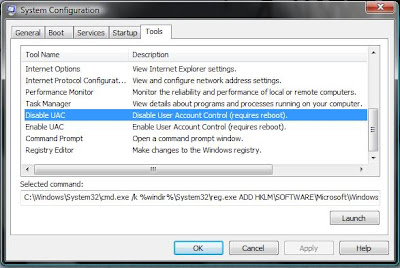
On the far right tab, called 'Tools', there is a list of Tool Names.

Find the list item (shown below) entitled 'Disable UAC'

(To turn the feature back on follow the same steps but use 'Enable UAC' instead... complicated, I know)

Click the 'Launch' button near the bottom right.

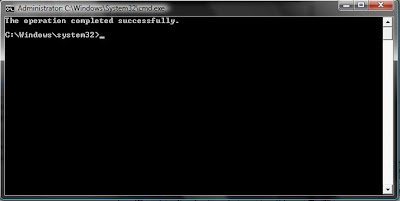
Suffer through the very long half second and you get the following command console notice that, hopefully, the operation completed successfully...


Finally, reboot and enjoy the silence.